
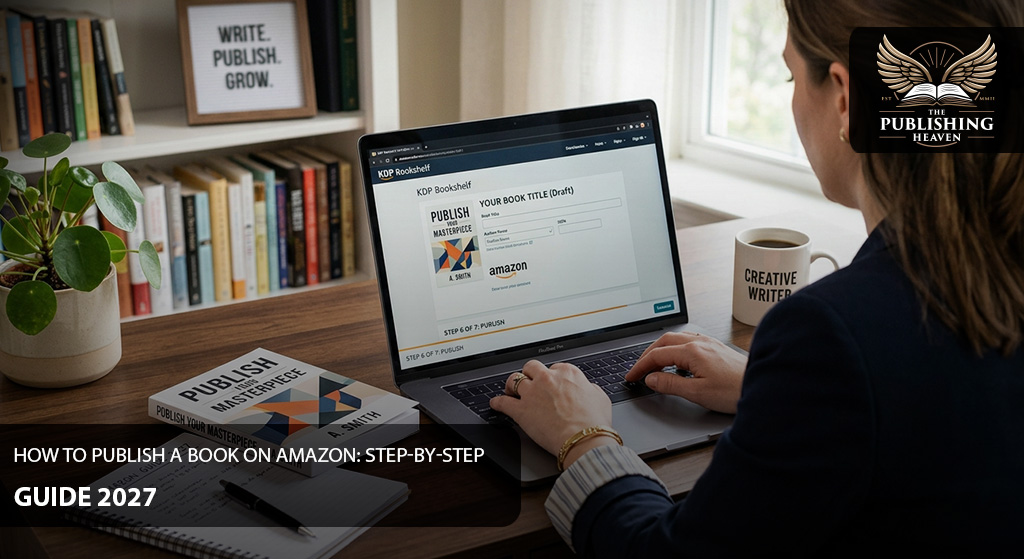
Learning how to publish a book on Amazon can seem complicated at first. However, Amazon Kindle Direct Publishing, or KDP, gives authors a direct way to publish eBooks, paperbacks, and hardcovers. You can upload your manuscript, enter your book details, set pricing, and submit your book without going through a traditional publishing house.
The process becomes much easier when you understand each stage before you begin. From preparing your manuscript to selecting categories and reviewing your final book, every step affects how your book appears to readers. Therefore, careful preparation can prevent avoidable problems later.
This guide explains how to publish a book on Amazon in 2027. It covers the current KDP workflow, publishing requirements, formatting, ISBNs, pricing, royalties, book descriptions, categories, and final submission.
Table of Contents
- What Is Amazon KDP?
- What You Need Before Publishing
- Step 1: Create Your KDP Account
- Step 2: Prepare Your Manuscript
- Step 3: Prepare Your Book Cover
- Step 4: Choose Your Book Format
- Step 5: Enter Your Book Details
- Step 6: Choose Categories and Keywords
- Step 7: Upload and Preview Your Book
- Step 8: Set Your Rights and Pricing
- Step 9: Order a Proof Copy
- Step 10: Submit Your Book for Publication
- Step 11: Check Your Amazon Book Page
- Step 12: Promote Your Published Book
- Common Mistakes to Avoid
- How to Publish a Book on Amazon Successfully
- Frequently Asked Questions
- Conclusion
What Is Amazon KDP?
Amazon Kindle Direct Publishing is Amazon’s self-publishing platform. It allows authors and publishers to make books available through Amazon without paying a publishing company to place the book on the platform.
KDP currently supports Kindle eBooks, paperbacks, and hardcover books. Amazon also provides tools for formatting, previewing, publishing, and managing books.
Authors retain rights to their books when using KDP. However, they remain responsible for ensuring that their content follows Amazon’s publishing and intellectual property requirements.
KDP can therefore provide considerable control over the publishing process. You decide the book’s content, metadata, pricing, and publishing rights.
However, self-publishing does not mean skipping professional preparation. A poorly formatted manuscript or weak cover can still hurt the reader’s experience. Professional book editing and book proofreading can help you prepare the manuscript before uploading it.
What You Need Before Publishing
Before learning how to publish a book on Amazon, gather the materials and information you will need.
At minimum, prepare the following:
- A completed and edited manuscript
- A professionally prepared book cover
- Your book title and subtitle
- Author or pen name information
- Book description
- Relevant keywords
- Appropriate categories
- ISBN information for eligible print formats
- Publishing rights information
- Pricing information
- Bank and tax details for your KDP account
Your manuscript should already be finished before you start the upload process. KDP is a publishing platform, not a substitute for editing or manuscript development.
You should also decide which formats you want to publish. For example, you might publish an eBook first and add paperback and hardcover editions later. If you plan to release several formats, keep the metadata consistent across editions.
Amazon states that matching title and author information helps KDP link different editions of the same book.
Step 1: Create Your KDP Account
The first practical step is creating your KDP account.
If you already have an Amazon account, you can use it to sign in to KDP. Otherwise, you can create a new KDP account using your email address and password.
After creating the account, you need to provide additional information. This includes your legal account information, mailing address, payment details, and tax information. Amazon may also ask you to verify your identity.
Do not use your pen name as your legal account name. Instead, provide your legal information where KDP requests account details. Your chosen author or pen name can be entered later within your book’s author information.
You can review Amazon’s current KDP account setup instructions before completing this stage.
Step 2: Prepare Your Manuscript
Your manuscript is the heart of your book, so preparation should happen before uploading.
First, complete the writing process. Then, have the manuscript edited and proofread. After that, format the interior according to your chosen format.
Formatting requirements differ between eBooks, paperbacks, and hardcovers. A print manuscript needs careful attention to trim size, margins, page layout, fonts, headers, footers, page numbers, and bleed requirements where applicable.
An eBook requires a different approach. Reflowable Kindle books need a layout that works across different screen sizes and devices.
Amazon provides separate guidance for eBook, paperback, and hardcover formatting. You can also use tools such as Kindle Create for supported projects.
If you need help preparing a polished manuscript, The Publishing Heaven’s book formatting services can be considered before your files reach KDP.
Check Your Front and Back Matter
Your book may include several elements besides the main chapters.
Depending on your book, these can include:
- Title page
- Copyright page
- Dedication
- Table of Contents
- Preface or introduction
- Acknowledgments
- Author biography
- References
- About the author section
Make sure every element appears in the correct place. Also, check page numbering and chapter headings carefully in print editions.
A professional final review can catch errors that are difficult to notice after repeatedly reading your own manuscript.
Step 3: Prepare Your Book Cover
Your cover is one of the first things potential readers will see. Therefore, it needs to look professional at both full size and thumbnail size.
For a print book, the cover normally includes the front cover, spine, and back cover. The exact dimensions depend on factors such as trim size, page count, and paper or ink choices.
For an eBook, the cover works differently because there is no physical spine or back cover.
KDP provides cover specifications and tools that authors can use during preparation. Amazon also offers Cover Creator for authors who want to create covers through KDP.
Before uploading your cover, check every word. Confirm the title, subtitle, author name, and other information against the manuscript and KDP metadata.
You can also consider professional book cover design if you want a custom visual identity for your book.
Step 4: Choose Your Book Format
KDP allows you to publish several types of books.
The main choices are:
Kindle eBook
An eBook is designed for reading on Kindle devices and compatible apps. Its content can reflow across different screen sizes.
Paperback
A paperback gives readers a physical edition printed on demand. Amazon handles printing and fulfillment when customers order copies.
Hardcover
Hardcover editions provide another physical format for eligible books. They require their own formatting and cover specifications.
You do not have to publish every format at once. However, many authors choose to create multiple editions because different readers prefer different formats.
If you publish an eBook, paperback, and hardcover edition, make sure the title and author information match. KDP uses this information when attempting to link editions together on Amazon.
Step 5: Enter Your Book Details
Once your files are ready, go to your KDP Bookshelf and select the option to create a new book.
KDP’s setup process currently divides publishing into three main stages: book details, content, and rights and pricing.
The book details section contains information that will appear on your Amazon product page.
You may need to enter:
- Book title
- Subtitle
- Series information
- Edition information
- Author name
- Contributors
- Book description
- Publishing rights
- Keywords
- Categories
- Primary marketplace
- Reading age where applicable
Take your time with these fields. Some information can be difficult or impossible to change after publication.
Get the Title and Author Name Right
Your title should match the title shown in your manuscript. The same principle applies to your author name.
If you use a pen name, enter it as the author or contributor name where appropriate. Keep the spelling consistent across your cover, manuscript, and KDP setup.
Amazon specifically advises authors to ensure that the title, subtitle, author name, series information, and ISBN in the manuscript match the details entered during setup.
Write a Strong Book Description
Your description should tell potential readers what the book offers.
For fiction, you can introduce the central character, conflict, setting, and stakes without revealing major spoilers. For nonfiction, explain the subject, audience, and practical value.
Keep the writing clear and persuasive. However, avoid making claims that the book cannot support.
Amazon’s content guidelines prohibit misleading descriptive content.
Step 6: Choose Categories and Keywords
Categories and keywords help Amazon understand where your book belongs.
KDP currently allows authors to select three categories during book setup. Amazon recommends choosing categories that accurately describe the book rather than selecting unrelated categories simply to reach a different audience.
Start by identifying your book’s primary genre and subgenre. Then, examine where comparable books appear on Amazon.
For example, a historical romance should not be placed in an unrelated science fiction category simply because the latter appears attractive. Accurate categorization creates a better match between the book and potential readers.
Keywords also require careful thought. Consider the terms readers might use when searching for a book like yours.
Use specific, relevant phrases instead of repeating the same word in every keyword field. Your goal should be accurate discoverability, not keyword stuffing.
Amazon notes that categories can vary between marketplaces and formats. Categories can also change over time.
Step 7: Upload and Preview Your Book
After entering your book details, upload the manuscript and cover.
Then, use KDP’s preview tools to inspect the book before submission.
This stage deserves serious attention. Do not assume that a file that looks correct on your computer will appear perfectly inside the Kindle or print environment.
For a print book, check:
- Margins
- Page breaks
- Chapter openings
- Headers and footers
- Page numbers
- Images
- Tables
- Blank pages
- Spine information
- Cover alignment
For an eBook, check:
- Chapter headings
- Table of Contents links
- Images
- Font behavior
- Paragraph spacing
- Page breaks
- Special characters
- Hyperlinks
- Overall navigation
Fix errors before continuing.
KDP’s current workflow lets authors upload and preview their prepared files before moving to rights and pricing.
Step 8: Set Your Rights and Pricing
The final major part of KDP’s setup process involves rights and pricing.
First, confirm that you have the necessary publishing rights. If you wrote the book yourself, this may be straightforward. However, translated, licensed, public-domain, collaborative, or previously published works can involve additional considerations.
Amazon states that authors are responsible for ensuring their books do not violate copyright, trademark, privacy, publicity, or other rights.
Understand ISBN Requirements
An ISBN identifies a particular book edition and format.
KDP currently states that eBooks do not require ISBNs. Paperback and hardcover books generally require ISBNs, although certain low-content books have different rules. KDP may provide a free ISBN for eligible print books.
If you own your ISBN, check that the information associated with it matches your KDP submission.
Set Your eBook Price
KDP currently offers 35% and 70% royalty options for eligible eBooks. The 70% option has specific territory and pricing requirements, and delivery costs can apply.
Therefore, do not choose a royalty option based only on the percentage shown. Review the eligibility requirements and calculate what the option means for your actual book.
Set Your Print Price
Paperback royalties depend on factors including the list price, marketplace, and printing costs.
KDP currently uses 50% or 60% royalty rates for standard paperback sales in supported Amazon marketplaces, depending on the applicable price threshold. Printing costs are then deducted from the royalty calculation.
The calculation can therefore be summarized as:
Royalty rate × list price − printing cost = royalty
Use the royalty information displayed inside KDP when setting your final price. Amazon’s calculations can vary by marketplace and book specifications.
Step 9: Order a Proof Copy
If you are publishing a paperback or hardcover, consider ordering a proof copy before releasing the book.
A proof allows you to hold the physical book and inspect it as a reader would.
Look for:
- Incorrect page breaks
- Missing text
- Margins that feel too narrow
- Image problems
- Cover alignment issues
- Unexpected blank pages
- Font problems
- Spine placement
- Color differences
- Formatting inconsistencies
A proof copy is not mandatory. Amazon states that authors can publish without ordering one. However, it can provide a valuable final quality check for physical editions.
If you find a problem, correct the manuscript or cover before publishing.
Step 10: Submit Your Book for Publication
Once everything looks correct, submit the book for publication.
KDP will review the book against its requirements. During the review period, the book can be locked for changes. Amazon states that review times vary depending on the type of book submitted.
Do not panic if your book does not appear immediately after submission.
Amazon’s review process exists to check whether the book meets applicable formatting and content requirements. Additional information may also be requested in some cases.
If KDP identifies a problem, read the notification carefully. Correct the issue and resubmit the affected book when appropriate.
Step 11: Check Your Amazon Book Page
After your book becomes available, visit its Amazon product page.
Check the public page carefully.
Confirm that:
- The title is correct.
- Your author name is correct.
- The cover appears properly.
- The description displays correctly.
- The price is correct.
- The format is correct.
- The categories are appropriate.
- The book description matches the actual book.
- Different editions are linked where appropriate.
Amazon states that a newly published book can take up to 72 hours to appear in Amazon search results after becoming available for purchase.
Do not judge your launch based solely on the first few hours.
Instead, make sure the product page is accurate and complete before beginning your promotional campaign.
Step 12: Promote Your Published Book
Publishing the book is only one part of becoming an author.
Once your book is live, you need to help potential readers find it.
Your marketing approach will depend on your genre, audience, budget, platform, and publishing goals.
You can consider:
- An author website
- Email marketing
- Social media
- Reader communities
- Book reviews
- Guest articles
- Podcast appearances
- Author interviews
- Book launch events
- Amazon Advertising
- KDP marketing tools
KDP itself offers several promotional features, including Amazon Advertising, Author Central, A+ Content, and KDP Select for eligible eBooks. Some tools depend on marketplace or program eligibility.
A professional book marketing strategy can also help you build a structured launch plan.
Your marketing should begin before publication when possible. Build interest early, prepare promotional material, and make sure your author platform is ready.
Common Mistakes to Avoid
Publishing through KDP is accessible, but mistakes can still create problems.
Uploading an Unedited Manuscript
Finishing the first draft does not mean the book is ready for publication. Editing should address structure, language, consistency, and readability. Proofreading should follow after the major revisions are complete.
Using a Poorly Designed Cover
Readers often judge a book visually before reading its description. A cover that looks amateurish can make an otherwise strong book appear less professional.
Ignoring the Previewer
Never assume your uploaded file will appear exactly as expected. Preview the book and examine every section.
Choosing Irrelevant Categories
Categories should accurately represent the book. Amazon specifically warns against misleading categorization.
Writing a Weak Description
Your description should give readers a clear reason to consider the book. Avoid vague statements that do not explain what the reader will actually find inside.
Entering Inconsistent Metadata
Your title, author name, subtitle, and other metadata should remain consistent across your manuscript, cover, ISBN information, and KDP listing.
Forgetting AI Disclosure Requirements
Amazon currently requires authors to disclose AI-generated text, images, or translations when publishing or republishing through KDP. AI-assisted content does not require disclosure under Amazon’s current distinction.
This distinction matters. If an AI tool generated the actual text or artwork, it falls under Amazon’s current definition of AI-generated content. If you created the material yourself and used AI only to edit, refine, brainstorm, or check it, Amazon currently treats that as AI-assisted.
Because Amazon can update its policies, check the current content guidelines when you submit your book.
How to Publish a Book on Amazon Successfully
Knowing how to publish a book on Amazon is only the beginning. A successful publishing process requires preparation at every stage.
Start with a strong manuscript. Then, invest time in editing, proofreading, formatting, and cover design. After that, build accurate metadata and choose categories that genuinely match the book.
Most importantly, do not rush through the KDP preview and submission stages. Small errors can affect the reader’s experience, while metadata mistakes can create confusion on your Amazon product page.
If you need professional support, The Publishing Heaven offers services covering ghostwriting, book editing, book proofreading, book formatting, book cover design, and book marketing.
Frequently Asked Questions
1. Can I publish a book on Amazon myself?
Yes. Amazon KDP allows authors to self-publish eBooks, paperbacks, and hardcover books. You can manage the publishing process directly through your KDP account.
2. Does it cost money to publish through Amazon KDP?
KDP allows authors to publish eBooks and print books without an upfront publishing fee. However, costs can arise from services such as editing, proofreading, formatting, cover design, and marketing. Print royalties also account for printing costs.
3. Do I need an ISBN to publish on Amazon?
It depends on the format. KDP states that eBooks do not require ISBNs. Paperback and hardcover books generally require ISBNs, with certain low-content exceptions.
4. Can I publish under a pen name?
Yes. You can use a pen name for the author information associated with your book. However, your KDP account information should use your legal details where Amazon requests them.
5. How long does Amazon take to publish a book?
KDP reviews books before making them available. Review times vary by book type. After a book becomes available, Amazon states that it can take up to 72 hours to appear in search results.
6. Can I publish both an eBook and paperback?
Yes. KDP supports eBooks, paperbacks, and hardcovers. Authors can create multiple formats and have them linked when the relevant edition information matches.
7. Can I change my book after publishing?
Many book details can be updated after publication. However, some information has restrictions or may require a new edition. Therefore, check KDP’s current rules before making substantial changes.
8. Does Amazon print paperback books?
Yes. KDP uses print-on-demand for eligible print books. When customers order copies, Amazon can print and fulfill those orders through its supported distribution system.
9. Does Amazon require disclosure of AI-generated content?
Yes. Amazon currently requires disclosure of AI-generated text, images, and translations submitted through KDP. AI-assisted content does not require disclosure under its current guidelines.
10. Should I order a proof copy before publishing?
For print books, a proof copy can help you identify physical formatting and cover problems before publication. It is optional, but it can provide an additional quality-control step.
Conclusion
Learning how to publish a book on Amazon becomes easier when you follow each stage carefully. Prepare your manuscript, create a professional cover, set up your KDP account, enter accurate metadata, choose relevant categories, upload your files, and review everything before publishing.
KDP gives authors greater control over publishing and distribution. However, that control also makes quality and accuracy especially important. Professional editing, proofreading, formatting, cover design, and marketing can help authors prepare their books for publication and build a stronger launch strategy.
Authors can also seek professional support throughout the publishing process. The Publishing Heaven can assist with writing, editing, formatting, publishing, and other author services. 360 Book Marketeers provides publishing-related support for authors who want additional assistance.
Likewise, Global Book Distributors can support authors with book distribution services. KDP Publishing Team also offers publishing assistance for authors navigating the Amazon KDP process.
Before publishing in 2027, review the latest Amazon KDP requirements. Amazon may update its policies, tools, royalty structures, content rules, and publishing requirements. Therefore, always check the official Amazon KDP Help Center before submitting your book.
