
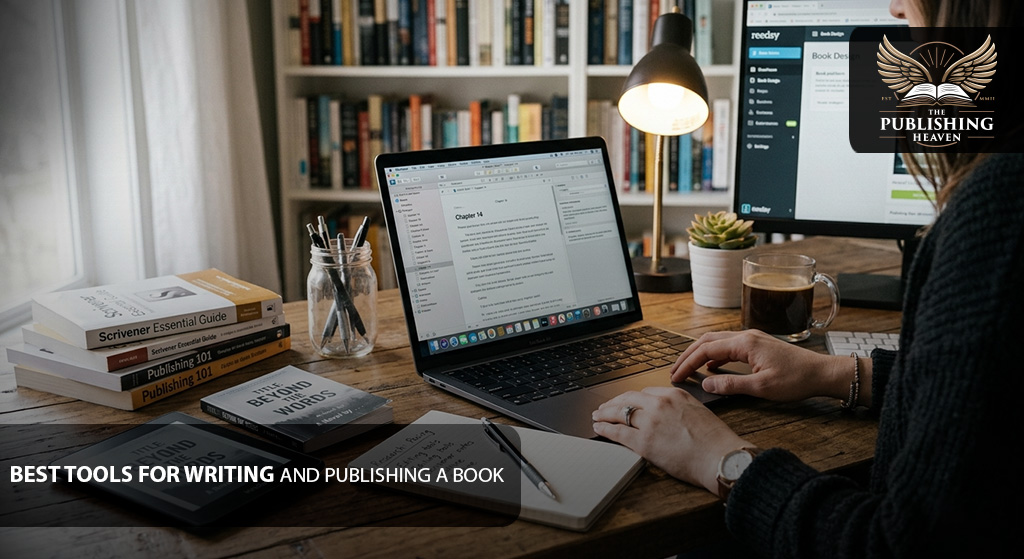
The Right Tool for the Right Job
You are ready to write your book. You have the idea, the motivation, and the time. But then you look at the endless options – word processors, formatting software, cover design tools, publishing platforms. You feel overwhelmed. Which tools do you actually need? Which are worth paying for? Which will just distract you?
Here is the truth: you do not need expensive or complicated tools to write and publish a book. Many successful authors started with free software and simple processes. The “best” tool is the one that helps you finish – not the one with the most features.
This guide cuts through the noise. You will learn the best tools for writing and publishing a book – from writing your first draft to uploading on Amazon. We cover free options, paid upgrades, and when to use each. By the end, you will have a clear tool stack that fits your budget and skill level.
Let’s equip you for success.
What Tools Do You Actually Need?
Before we dive into specific tools, understand the four stages of book creation and the tool categories needed for each:
- Writing: Word processor or distraction‑free editor.
- Editing: Grammar checkers, style guides, and collaboration tools.
- Design & formatting: Cover design software, interior layout tools.
- Publishing & marketing: Platforms (KDP, IngramSpark), email marketing, ad management.
You do not need a tool for every category. Many authors use a simple word processor for writing, a professional formatter for layout, and KDP for publishing. Choose what matches your technical comfort and budget.
How much can you save by using free tools? A complete tool stack using only free options (plus a pre‑made cover) costs about $150-$400. The same stack with paid professional services (editing, custom cover, formatting) costs $2,000-$7,000. Both paths can succeed – choose based on your budget and goals.
The Publishing Heaven insight: We have seen authors get lost in tool research. They spend weeks comparing software instead of writing. The best tool is the one you start using today. You can always upgrade later.
The Best Tools by Category
Writing Tools: From Free to Professional
Your primary writing tool should be simple, reliable, and distraction‑free. Here are the best options.
Free Writing Tools (Perfect for Beginners)
Google Docs: Free, cloud‑based, auto‑saves, works on any device. Great for beginners. Share with beta readers easily. Downside: can be slow with very large documents (over 100,000 words).
Microsoft Word (web or mobile free): The classic. Most editors expect .docx files. The free web version is adequate. Paid desktop version has more features (but not necessary).
FocusWriter: Free, distraction‑free interface. Hides menus and buttons. Great for staying focused.
yWriter: Free, designed by a novelist. Includes scene and character management. Windows only.
Actionable step: Start with Google Docs. You can always switch later. Do not let tool choice delay writing.
Paid Writing Tools (For Serious Writers)
Scrivener: One‑time cost $60 (Windows/Mac). Powerful for long manuscripts: corkboard, outlining, research storage, compile to multiple formats. Steep learning curve but loved by novelists.
Ulysses: Subscription ($15/month or $60/year). Mac/iOS only. Clean interface, excellent organization. Good for non‑fiction and blog posts.
Dabble: Subscription ($10-$20/month). Cloud‑based, similar to Scrivener but easier. Good for writers who switch devices.
Microsoft Word (desktop): Part of Microsoft 365 ($70/year). The desktop version has advanced formatting and collaboration features.
Comparison table: Writing tools
| Tool | Cost | Platform | Best For |
| Google Docs | Free | Web, mobile | Beginners, collaboration |
| FocusWriter | Free | Windows, Mac, Linux | Distraction‑free writing |
| yWriter | Free | Windows | Novelists on a budget |
| Scrivener | $60 one‑time | Windows, Mac | Complex novels, research‑heavy |
| Ulysses | $60/year | Mac, iOS | Mac users, non‑fiction |
| Dabble | $10-$20/month | Web, mobile | Writers who switch devices |
Recommendation for first‑time authors: Start free. If you write a second book and want more structure, invest in Scrivener or Dabble.
Editing Tools: Catch Errors Before Hiring an Editor
You should still hire a professional editor, but these tools help you submit a cleaner manuscript.
Free Grammar Checkers
Grammarly (free version): Catches common grammar, punctuation, and spelling errors. The free version is sufficient for most authors. Browser extension works in Google Docs.
LanguageTool: Free open‑source alternative to Grammarly. Good for non‑English dialects.
ProWritingAid (free limited): More detailed reports, but free version restricts word count.
Paid Editing Tools (Upgrade Before Sending to Editor)
Grammarly Premium: $30/month or $144/year. Adds style suggestions, vocabulary enhancement, and genre‑specific checks.
ProWritingAid: $79/year. More comprehensive than Grammarly for style and overused words. Integrates with Scrivener.
Hemingway Editor: One‑time $20 (desktop) or free web version. Highlights long sentences, passive voice, and complex phrases.
AutoCrit: $8-$15/month. Specialized for fiction writers. Analyzes pacing, dialogue, and repetition.
Actionable step: Run your draft through the free version of Grammarly before sending to a professional editor. It will catch obvious errors and save you money.
Formatting Tools: Turn Your Manuscript into a Book
Formatting is the most technical part. You have three options: DIY software, professional formatters, or using KDP’s templates.
DIY Formatting Software (For Those Who Want to Learn)
Draft2Digital: Free, cloud‑based. Converts Word to ePub and PDF. Good for simple books.
Kindle Create: Free from Amazon. Designed for Kindle books. Good for beginners, but limited for print.
Professional formatting software (paid): Tools exist that specialize in book layout. One‑time cost $200-$250. Export clean Kindle and paperback files. Good for authors planning multiple books.
Comparison: Free vs paid formatting
| Tool | Cost | Output | Difficulty | Best For |
| Reedsy | Free | ePub, print PDF | Low | First book |
| Draft2Digital | Free | ePub, print PDF | Low | Simple books |
| Kindle Create | Free | Kindle only | Low | Ebook‑only authors |
| Paid software | $200-$250 | ePub, print PDF | Medium | Multiple books |
Actionable step: Start with any free software. If you struggle or want higher quality, hire a professional formatter.
Professional Formatting Services (No Technical Skills Required)
If you do not want to learn formatting, outsource it. A professional formatter costs $300-$700 for Kindle and paperback. They deliver files ready for KDP.
When to outsource: You are not comfortable with software, or your book has complex layouts (tables, images, poetry). The cost is a few hundred dollars – well worth the peace of mind.
The Publishing Heaven note: We offer professional formatting as part of our publishing packages. Our team handles margins, gutters, bleed, font embedding, and table of contents. You do not need to learn any software.
Cover Design Tools: You Do Not Need to Be a Designer
Your cover is critical. Do not use free templates or AI generators. But you have affordable options.
Pre‑Made Covers (Best for Low Budgets)
Pre‑made cover marketplaces: Sites cost $150‑$400. You choose a ready‑made design, add your title and author name. No design skills needed.
How to find pre‑made covers: Search “pre‑made book covers” plus your genre (e.g., “pre‑made romance covers”). Browse portfolios. Most designers offer 2‑3 free revisions.
Custom Cover Design (Best for Most Authors)
Professional cover designers: Hire through software, or direct. Cost $500-$1,500. You receive a unique, genre‑appropriate cover. Most authors go this route.
What to expect from a custom designer:
- Initial consultation (15‑30 minutes)
- 2‑3 concept sketches
- 2‑3 rounds of revisions
- Final files: ebook cover (JPEG) and print cover (PDF with spine)
Design software (for experienced users only) – Adobe InDesign, Photoshop, Canva. Not recommended for beginners. DIY covers almost always look amateur.
Actionable step: If your budget is under $500, buy a pre‑made cover. If you have $500‑$1,500, hire a custom designer. Do not design it yourself.
Publishing Platforms: Where to Sell Your Book
You need a platform to distribute your book. For most first‑time authors, Amazon KDP is the best choice.
Amazon KDP (Free, Best for Beginners)
- Free to upload.
- 70% royalty on ebooks priced $2.99-$9.99.
- Print‑on‑demand paperbacks.
- Global distribution.
- Easy to use.
Why KDP wins: It is free, fast, and has the largest audience. Start here.
IngramSpark (For Wide Distribution)
- One‑time fee (often waived with promotions).
- Distributes to bookstores, libraries, and international retailers.
- Slightly more complex.
When to use IngramSpark: After you have published on KDP and want expanded distribution. Most authors do not need it initially.
Other Platforms (Apple Books, Kobo, Barnes & Noble Press)
These can be added later. Focus on KDP first.
Marketing Tools: Free and Low‑Cost Options
You need to market your book. These tools help.
Email Marketing (Free for Beginners)
MailerLite: Free up to 1,000 subscribers. Easy to use. Good automation.
ConvertKit: Free up to 300 subscribers. More powerful but steeper learning curve.
Mailchimp: Free up to 500 subscribers. Good for beginners.
Actionable step: Set up a free email account today. Add a signup link in your book.
Amazon Ad Management (For When You Run Ads)
Amazon Ads dashboard – Free, built into KDP. Start with $5‑$10 daily budget.
Publisher Rocket – Paid tool ($100 one‑time) for keyword research. Not necessary for beginners.
Actionable step: Do not buy any paid ad tools until you have at least 20 reviews and a basic understanding of Amazon PPC.
Free Marketing Channels (No Tools Required)
- Social media (choose one platform).
- Your personal network (email friends, ask for reviews).
- Free promotion sites (Facebook groups, Goodreads giveaways).
Project Management & Collaboration Tools (For Teams)
If you work with editors, designers, or beta readers, these tools help.
Trello: Free, visual task boards. Good for tracking revisions.
Asana: Free up to 15 team members. Good for complex projects.
Slack: Free, messaging for teams. Good for communication with editors.
When you need these: Only if you have multiple collaborators. Most solo authors do not need project management tools.
Expert Insights: Tool Mistakes to Avoid
Mistake 1: Buying expensive software before you write. You spend $200 on a writing software, spend weeks learning it, and never write a word.
Fix: Start with free tools. Upgrade only after you finish your first draft.
Mistake 2: Designing your own cover. You use Canva or AI and think it looks good. Readers see amateur.
Fix: Spend $150-$1,500 on a professional cover (pre‑made or custom). It pays for itself.
Mistake 3: Using Microsoft Word for formatting. You export to PDF and upload to KDP. Errors everywhere.
Fix: Use free formatting tools or hire a formatter.
Mistake 4: Ignoring email marketing. You publish and have no way to contact readers.
Fix: Set up a free email account before you publish. Add a signup link in your book.
Mistake 5: Using too many tools. You have a dozen subscriptions and spend more time managing tools than writing.
Fix: Use the minimal tool stack. Add tools only when you have a specific need.
Examples / Use Cases: Real Authors and Their Tool Stacks
Use Case 1: The No‑Budget Beginner
Author: Maria had $0 for tools. She used Google Docs (free) for writing, Grammarly free for editing, a software (free) for formatting, and a pre‑made cover ($200). She published on KDP.
Result: She sold 300 copies in her first year. Maria says, “Free tools got me started. I upgraded later.”
Use Case 2: The Tech‑Comfortable Author
Author: Tom was comfortable with software. He used a dedicated writing software ($60) and a grammar checker ($79/year) for editing, and a dedicated formatting software ($200) for layout. He hired a custom cover designer ($800).
Result: His book looked professionally produced. He sold 1,500 copies in six months.
Use Case 3: The Author Who Outsourced Everything
Author: Lisa had a busy schedule. She wrote in Google Docs, then hired The Publishing Heaven for editing, cover design, formatting, and KDP setup (total $7,500).
Result: She published a bestseller and generated $150,000 in consulting leads. Lisa says, “I did not want to learn tools. I hired experts.”
Use Case 4: The Mac User Who Loved Writing Software
Author: David was a Mac user who wrote every day on his laptop and iPhone. He used an application ($60/year) for writing, Grammarly Premium for editing, and a software for formatting ($250). He designed his cover in Photoshop (already owned).
Result: He published three novels in two years, earning $8,000 in royalties. David says, “Writing and editing software are worth every penny for Mac users.”
Conclusion: Choose Tools That Help You Finish
The best tools for writing and publishing a book are the ones that get you to the finish line. You do not need a complex setup. You need a simple, reliable stack.
Your starter tool stack (zero cost except cover):
- Writing: Google Docs (free)
- Editing: Grammarly free (free)
- Formatting: Reedsy Book Editor (free)
- Cover: Pre‑made cover ($150‑$400)
- Publishing: Amazon KDP (free)
- Email: MailerLite free (free)
Total cost to publish your first book (excluding optional editing): $150‑$400
Your upgraded tool stack (for serious authors):
- Writing: $60
- Editing: $79/year
- Formatting: Paid software ($200) or professional formatter ($300‑$700)
- Cover: Custom designer ($500‑$1,500)
- Publishing: KDP and IngramSpark ($49)
- Email: $15‑$29/month
Total cost: $1,000‑$2,500 (one‑time plus annual subscriptions)
Upgrade when you have proven you can finish a book. Do not buy expensive tools until you have a finished manuscript.
Your book matters more than your tools. Start writing today.
FAQs: Best Tools for Writing and Publishing a Book
Q: Do I need Scrivener to write a book?
No. Most authors write their first book in Google Docs or Word. Paid software is helpful for complex projects but not necessary for beginners.
Q: Can I publish a book without using any paid tools?
Yes. Free options: Google Docs, Grammarly free, Reedsy formatting, KDP publishing, and email list with MailerLite. Covers require a small investment ($150-$400 for pre‑made).
Q: What is the most important tool to spend money on?
Your cover. A professional cover ($150-$1,500) has the highest return on investment. The second is professional editing ($1,000-$5,000).
Q: Should I buy a lifetime subscription to formatting software?
Only if you plan to publish multiple books. For one book, hire a professional formatter ($300-$700) – it costs about the same and saves you learning time.
Q: Is Grammarly Premium worth it?
For most authors, the free version is enough. Upgrade to Premium only if you write long documents and want style suggestions. Many professional editors still prefer to work from a clean file, not a Grammarly‑corrected one.
Q: Does The Publishing Heaven offer these tools?
We are not a tool provider. We are a premium, one‑stop publishing solutions company. We use professional tools to deliver editing, cover design, formatting, and publishing services. You do not need to learn any tools – we handle everything for you. Contact us for a consultation.
Strong Call-to-Action (CTA)
You now know which tools to use – and which to avoid. But learning new software takes time. If you would rather focus on writing and leave the technical work to experts, we are here to help.
At The Publishing Heaven, we provide professional editing, custom cover design, expert formatting, and KDP setup. You do not need to learn any tools. We handle the entire publishing process.
We are a premium, one‑stop publishing solutions company. Do not let tool confusion delay your book. Let us do the technical work so you can do what you love – writing.
Ready to publish your book without worrying about tools?
Visit The Publishing Heaven today to schedule your free consultation. Let’s turn your manuscript into a published book – with no tech headaches.
