
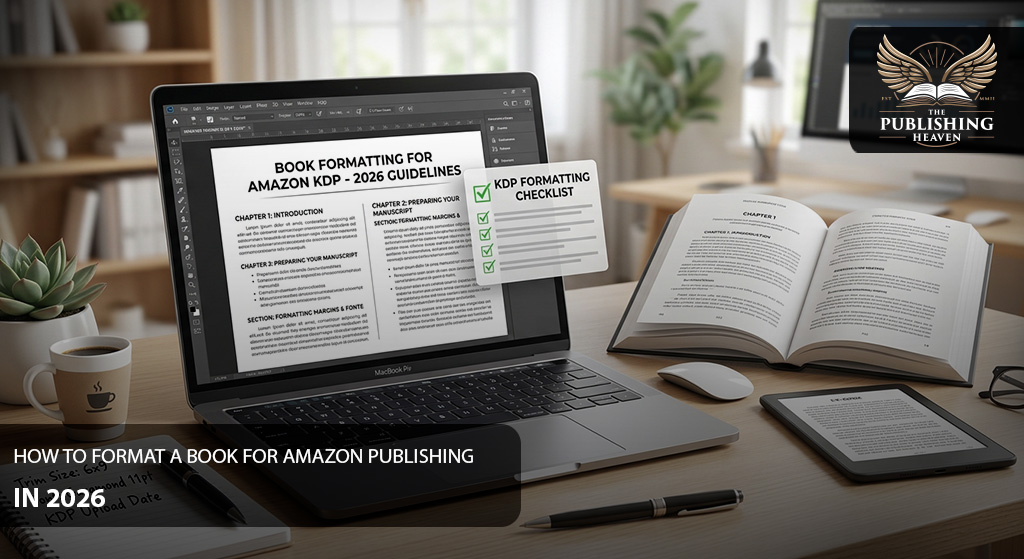
Formatting a book for Amazon publishing is an important step before you upload your manuscript to Kindle Direct Publishing. A well-formatted file gives readers a better experience and helps prevent technical problems during Amazon’s review process.
However, formatting an eBook is not the same as formatting a paperback or hardcover. Each format has different requirements for page size, margins, images, fonts, spacing, and navigation. Therefore, understanding the differences before you begin can save time and reduce costly revisions.
Amazon KDP allows authors to publish eBooks, paperbacks, and hardcovers through the same publishing platform. You can prepare your manuscript yourself, use Amazon’s formatting tools, or work with a professional book formatter. Amazon Kindle Direct Publishing’s official publishing guide provides the current publishing workflow and preparation requirements.
Table of Contents
- What Does Book Formatting Mean?
- How Amazon Book Formatting Works
- Choose Your Amazon Book Format
- How to Format a Paperback for Amazon
- How to Format a Hardcover for Amazon
- How to Format an eBook for Amazon
- Set Your Trim Size and Margins
- Format Your Book’s Front Matter
- Format Chapters and Body Text
- Format Images and Other Visual Elements
- Create a Table of Contents
- Prepare Your Back Matter
- Choose the Right File Type
- Use KDP’s Formatting Tools
- Preview Your Book Before Publishing
- Common Amazon Formatting Mistakes
- When to Hire a Professional Formatter
- Frequently Asked Questions
- Conclusion
What Does Book Formatting Mean?
Book formatting is the process of arranging your manuscript so it looks professional in its final published format. It includes elements such as fonts, spacing, paragraph styles, chapter headings, margins, page breaks, images, and page numbers.
For print books, formatting also involves physical page dimensions. Your trim size determines the final width and height of each printed page. In addition, your margins must provide enough space for text and other content without interfering with the binding.
eBooks work differently. Kindle books can reflow when readers change font sizes, orientation, or other display settings. As a result, eBook formatting focuses more on structure, navigation, compatibility, and flexible text presentation.
Therefore, you should not simply upload the exact same file for every format. Amazon specifically states that a paperback manuscript may need to be reformatted for eBook publication.
How Amazon Book Formatting Works
Amazon’s publishing process starts with two major elements for print books: the interior manuscript and the cover file. The manuscript contains your front matter, body matter, and back matter, while the cover includes the front, back, and spine.
First, prepare your manuscript according to the format you want to publish. Next, upload the file to KDP and use the preview tools to check how it appears.
After that, review the book carefully before submitting it for publication. This step matters because formatting problems can affect readability, page layout, images, margins, and other elements.
For print books, Amazon manually reviews the interior and cover files after submission. If it finds formatting issues, you may receive instructions explaining what needs to be corrected.
Choose Your Amazon Book Format
Before formatting your manuscript, decide whether you are publishing an eBook, paperback, hardcover, or several formats.
A text-heavy novel will usually need a different approach from a children’s picture book. Likewise, a cookbook, graphic novel, workbook, or photography book may require more complex visual formatting.
For Kindle eBooks, Amazon identifies reflowable books as a common option for text-heavy fiction and nonfiction. Readers can adjust settings such as font size and orientation, allowing the content to adapt to different screens.
Image-heavy books may require a fixed-layout approach instead. Amazon provides different Kindle formats because complex layouts cannot always be reproduced effectively through a standard reflowable file.
Therefore, choose the format before you begin detailed formatting work.
How to Format a Paperback for Amazon?
Paperback formatting requires you to think about the physical dimensions of the finished book. Your choices affect page count, margins, printing, and the overall reading experience.
Start by selecting an appropriate trim size. Amazon lists 6 x 9 inches as the most common paperback trim size in the United States, although KDP offers several other options.
Next, set your margins according to the trim size and page count. The inside margin, also called the gutter, needs particular attention because the book will be bound along that edge.
If your pages contain backgrounds, illustrations, or other elements that extend to the edge, you may need to use bleed. Without correct bleed settings, unwanted white edges can appear after trimming.
Amazon recommends setting the trim size before configuring margins because margin requirements depend on the book’s page count and bleed settings.
You can review the current specifications through Amazon KDP’s trim size, bleed, and margin guide before finalizing your interior file.
How to Format a Hardcover for Amazon?
Hardcover formatting follows many of the same principles as paperback formatting. However, you still need to select the appropriate specifications for the hardcover edition and prepare the cover according to Amazon’s requirements.
Your interior should have consistent margins, chapter formatting, page numbers, and other structural elements. At the same time, the cover needs to account for the physical construction of the hardcover.
Do not assume that a paperback cover can simply be reused without modification. Cover dimensions and specifications depend on the selected book format.
For that reason, check the current KDP requirements before preparing the hardcover cover. Amazon provides manuscript templates and formatting resources that can help you select the correct setup.
How to Format an eBook for Amazon?
eBook formatting requires a different mindset. Unlike a printed book, a Kindle eBook does not have a fixed physical page size.
Instead, readers can change font sizes and other display settings. Consequently, the text needs to adapt to different screens and reading preferences.
Amazon’s eBook formatting guide recommends using paragraph formatting rather than relying on tabs. For example, Amazon’s current Word guidance uses a first-line paragraph indentation of 0.2 inches and single line spacing for standard body text.
Chapter titles should use Heading 1 styles. This approach also makes it easier to create a navigational table of contents.
You should also use page breaks where a new chapter needs to begin. Avoid adding unnecessary hard returns because they can create unwanted spacing and layout problems.
Amazon also advises authors to preview eBooks before publication. Kindle Previewer lets you inspect how the book appears on phones, tablets, and Kindle devices.
For additional guidance, review Amazon’s official eBook Manuscript Formatting Guide.
Set Your Trim Size and Margins
Trim size is one of the first decisions you should make for a print book. It determines the final physical dimensions of every page.
For example, a 6 x 9-inch book has a different layout from a 5.25 x 8-inch book. Therefore, choosing the trim size after completing your formatting can force you to rebuild the interior.
Margins are equally important. Your outside margins provide breathing room around the text, while the inside margin protects content from getting too close to the binding.
If your book has many pages, the gutter becomes especially important. A cramped gutter can make a printed book uncomfortable to read.
Furthermore, books with full-page illustrations or backgrounds may require bleed. Check the current KDP specifications before creating your final PDF.
Format Your Book’s Front Matter
Front matter appears before the main body of your book. Its exact structure depends on your genre, book type, and publishing preferences.
Common front-matter elements include:
- Half-title page
- Title page
- Copyright page
- Dedication
- Epigraph
- Table of contents
- Foreword or introduction
You do not need every element for every book. A short novel, for example, may only need a title page, copyright page, dedication, and table of contents.
However, the elements you include should follow a consistent visual structure. Keep spacing, typography, alignment, and page breaks intentional.
For eBooks, Amazon recommends including a title page with the book title and author name. Front matter can also include elements such as dedication and copyright information.
Format Chapters and Body Text
Your chapter formatting should remain consistent throughout the book. Each chapter should use the same heading style, spacing, alignment, and page treatment.
For a print book, you may choose to begin every chapter on a new page. Many traditionally designed books also use different spacing for the opening paragraph of a chapter.
Body paragraphs should use consistent indentation and spacing. Avoid manually creating spaces with repeated tabs or multiple spaces.
For eBooks, styles become even more important. Amazon recommends applying Heading 1 to chapter titles in Word because these headings can also help create a navigational table of contents.
Most importantly, do not format every paragraph individually. Instead, create consistent styles and apply them throughout the manuscript. This approach makes revisions faster and reduces formatting inconsistencies.
Format Images and Other Visual Elements
Images require additional attention because their appearance can change depending on the publishing format.
For print books, determine whether an image needs to extend to the edge of the page. If it does, the interior may require bleed.
Resolution also matters. Low-quality images can appear blurry or pixelated when printed.
For eBooks, images need to work across different screen sizes. Complex layouts may also require a different Kindle format rather than a standard reflowable book.
Amazon notes that reflowable eBooks work well when body text can be separated from images without losing important context or layout. However, books with complex visual designs may need fixed-layout formatting.
Therefore, test image-heavy books carefully before publication.
Create a Table of Contents
A table of contents helps readers navigate your book. It is especially important for longer nonfiction books, guides, textbooks, and other structured titles.
For print books, the table of contents should match the final chapter titles and page numbers. You should update it after completing major formatting changes.
For eBooks, navigation works differently. Chapter headings should be structured correctly so the digital table of contents can function properly.
Amazon’s eBook guidance recommends using Heading 1 for chapter titles. You can then use those headings when creating your table of contents.
Do not type a digital table of contents as plain text and assume it will automatically become interactive. Instead, use the appropriate heading and navigation structure.
Prepare Your Back Matter
Back matter appears after the main content. It gives you an opportunity to provide useful information without interrupting the main reading experience.
Depending on your book, back matter may include:
- About the author
- Author’s note
- Acknowledgments
- Bibliography
- References
- Discussion questions
- Preview of another book
- Contact information
- Newsletter invitation
Not every book needs all these sections. Choose elements that support the reader and your publishing goals.
For example, a fiction author might include an author bio and a preview of another novel. A nonfiction author may include references, additional resources, or an author note.
Keep the formatting consistent with the rest of the book. In addition, make sure any links included in an eBook work correctly before publication.
Choose the Right File Type
The correct file type depends on the book format and the complexity of your interior.
For paperback books without bleed, KDP accepts several manuscript file types, including PDF, DOC, DOCX, RTF, HTML, and TXT. However, books with interior elements that bleed to the page edges require a PDF manuscript according to Amazon’s paperback submission guidelines.
Amazon also provides different formatting resources for eBooks, paperbacks, and hardcovers.
For that reason, do not convert your manuscript to a file type simply because it is familiar. First, check which format best suits your book and its visual requirements.
Use KDP’s Formatting Tools
You do not have to format everything manually. Amazon provides several tools and resources to help authors prepare their books.
Kindle Create is one option for authors working with text-heavy books and simpler layouts. Amazon recommends it for certain straightforward books, although it does have limitations.
For example, Amazon notes that Kindle Create does not support paperbacks containing tables, footnotes, or images that bleed. Therefore, authors working with complex interiors may need another formatting method.
KDP also provides manuscript templates, a file setup calculator, and other resources for paperback and hardcover projects. These tools can help you establish the correct dimensions before you begin.
You can review the available options through Amazon KDP’s formatting tools and resources.
Preview Your Book Before Publishing
Never assume that a manuscript looks correct simply because it looks correct in Microsoft Word.
The final published appearance can change after conversion or PDF creation. Therefore, previewing the finished file is one of the most important steps in the formatting process.
For print books, use KDP’s Print Previewer to inspect the interior. Look closely at chapter openings, page breaks, margins, images, headers, footers, page numbers, and blank pages.
For eBooks, use Kindle Previewer to examine the book across different devices and screen sizes. Amazon recommends previewing the eBook before submission because this can reveal quality issues that need correction.
Take your time during this stage. A few minutes of careful inspection can prevent repeated uploads and unnecessary corrections.
Common Amazon Formatting Mistakes
Several formatting mistakes appear repeatedly in self-published books. Fortunately, most are preventable when you follow a consistent process.
One common mistake is choosing the trim size too late. Another is setting margins without considering page count or the gutter.
Authors also sometimes use tabs to create paragraph indents. However, Amazon specifically advises against using tabs for eBook paragraph formatting because they may not convert consistently.
Other common problems include:
- Incorrect trim size
- Insufficient margins
- Incorrect bleed settings
- Inconsistent chapter headings
- Low-resolution images
- Unwanted blank pages
- Incorrect page numbering
- Poorly structured eBook navigation
- Inconsistent fonts
- Excessive manual spacing
- Cover dimensions that do not match the selected format
- Text placed too close to the gutter
Before publishing, review every page instead of relying only on an automated check. Amazon’s own formatting guidance highlights issues involving margins, bleed, fonts, blank pages, pagination, images, and other interior elements.
When to Hire a Professional Formatter?
Formatting a simple novel can be manageable if you understand Word styles, page setup, and basic book design. However, complex books can require considerably more work.
Consider professional formatting if your book includes many images, tables, charts, footnotes, special layouts, illustrations, or unusual typography.
A professional formatter can also help when you plan to publish several editions. For example, your paperback, hardcover, and eBook may require separate files rather than one universal manuscript.
If your manuscript still needs editing or proofreading, formatting should not be the first step. Editing changes the text, while proofreading catches remaining errors. Formatting works best after the manuscript is close to final.
If you need help preparing the manuscript, you can explore The Publishing Heaven’s book editing services and book proofreading services. You can also review its book formatting services for professional formatting support.
Frequently Asked Questions
1. What format should a book be in for Amazon KDP?
The appropriate file type depends on the format and design of your book. KDP accepts different manuscript formats for print books, while eBooks require formatting that supports Kindle’s digital reading environment.
For print books with bleed, Amazon requires the manuscript to be uploaded as a PDF. Books without bleed can use several accepted file types.
2. Can I format my Amazon book in Microsoft Word?
Yes. Microsoft Word can be used to prepare many KDP manuscripts. Amazon provides specific Word-based formatting guidance for eBooks and print books.
However, complex layouts may require more specialized software or professional formatting.
3. What is the best trim size for an Amazon paperback?
There is no single best trim size for every book. However, Amazon identifies 6 x 9 inches as the most common paperback trim size in the United States.
Your genre, word count, design, and reader expectations should influence the final choice.
4. Do eBooks need page numbers?
Generally, no. Reflowable eBooks adapt to different screens and font sizes, so traditional page numbers do not apply in the same way as they do in print books.
Amazon’s eBook formatting guidance states that page numbers, headers, and footers do not need to be added to reflowable eBooks.
5. Should every chapter start on a new page?
For a print book, beginning each chapter on a new page is a common professional design choice. For eBooks, chapter breaks should be created using appropriate page-break and heading structures.
The exact presentation can vary depending on your book and format.
6. Does Amazon format my book for me?
KDP provides tools and resources that can help you format your book, but you are responsible for preparing your manuscript and cover files.
Amazon offers Kindle Create, templates, formatting guides, and preview tools.
7. Can I use the same manuscript for paperback and Kindle?
You can use the same written content, but you should not assume that the same formatted file will work perfectly for both formats.
Amazon specifically notes that a manuscript published as a paperback may need to be reformatted for eBook publication.
8. How do I know if my book is formatted correctly?
Preview the completed file before publishing. Check margins, chapter openings, page breaks, images, fonts, page numbers, blank pages, and navigation.
For eBooks, inspect the book across different device previews. For print books, carefully review the complete interior through KDP’s Print Previewer.
Conclusion
Learning how to format a book for Amazon publishing can make the entire publishing process smoother. However, formatting involves more than choosing fonts and adjusting paragraph spacing. Your book needs the right structure, dimensions, margins, file type, and layout for its specific format.
Start by deciding whether you are publishing an eBook, paperback, hardcover, or multiple editions. Then, prepare the manuscript according to the requirements for each format. For print books, pay close attention to trim size, margins, bleed, page numbers, and image placement. For eBooks, focus on reflowable text, chapter navigation, headings, and device compatibility.
Amazon provides several resources to help authors prepare their files. Before uploading, review the official KDP manuscript formatting guidelines and use Amazon’s paperback formatting resources when preparing a print edition. You can also use KDP’s trim size, bleed, and margin guidance to confirm your page setup.
For Kindle books, Amazon’s eBook manuscript formatting guide can help you prepare a compatible digital file. In addition, Kindle Previewer lets you examine how your eBook appears across different reading environments before publication.
You should also preview your print interior before approving it. KDP Print Previewer can help you identify problems with margins, page breaks, images, blank pages, and other interior elements.
If you need professional assistance, The Publishing Heaven can help with book formatting, editing, proofreading, publishing, and related services. You can also explore 360 Book Marketeers for book marketing, Global Book Distributors for distribution services, and KDP Publishing Team for KDP-focused publishing assistance.
A professionally formatted book creates a stronger reading experience and presents your work more effectively. When you combine careful formatting with thorough proofreading, accurate publishing details, and a strong marketing plan, you give your book a better foundation for its Amazon launch.
