
Your Book Deserves to Be Read
You finished your manuscript. You edited it. You designed a cover. Now you want to share it with the world. But the publishing process seems intimidating. You have heard terms like “ePub conversion,” “print‑ready PDF,” and “metadata.” You worry about making a mistake that could hurt your sales.
Here is the truth: self‑publishing on Amazon KDP is simpler than you think. Thousands of first‑time authors do it every month. The platform is designed for beginners. You do not need technical skills or a publishing degree.
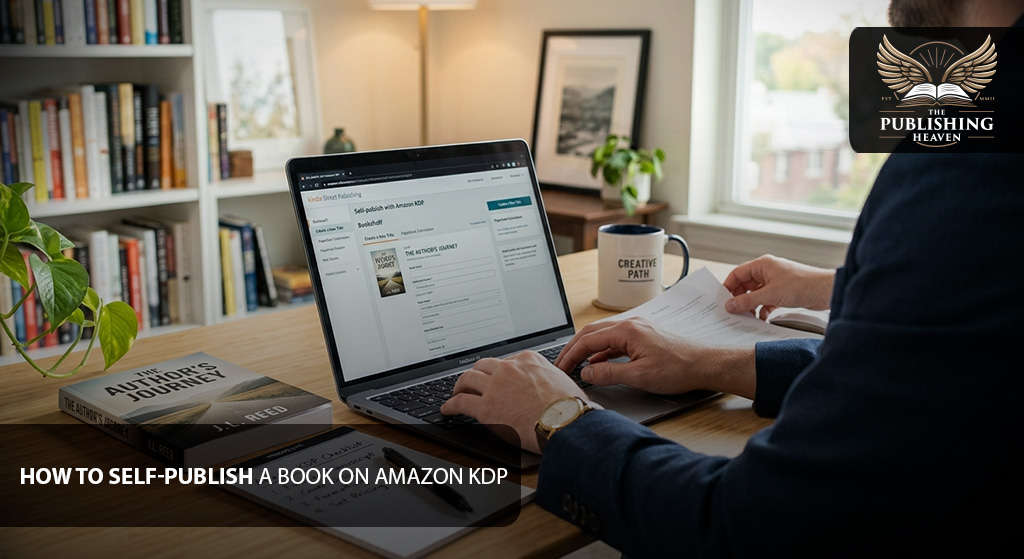
This guide walks you through exactly how to self-publish a book on Amazon KDP – from setting up your account to hitting “publish.” You will learn every step in plain English, with actionable instructions. No jargon. No confusion.
By the end, your book will be live on Amazon – and you will be a published author.
Let’s get your book into readers’ hands.
Why Amazon KDP Is the Best Choice for Beginners
Amazon KDP (Kindle Direct Publishing) is the world’s largest self‑publishing platform. Here is why most first‑time authors choose it:
- Free to use. No setup fees, no upload charges, no hidden costs.
- High royalties. Earn 70% on ebooks priced $2.99-$9.99, and 40‑60% on paperbacks after printing costs.
- Global distribution. Your book is listed on all Amazon marketplaces worldwide (US, UK, Germany, Japan, etc.).
- Print‑on‑demand. Paperbacks are printed only when ordered. No inventory, no risk.
- Easy to use. The dashboard is straightforward, with tooltips and help links.
Key industry fact for 2026: Over 60% of self‑published books are sold exclusively on Amazon KDP. It is the default starting point for most authors.
The Publishing Heaven insight: We have helped hundreds of authors self‑publish on KDP. The process is the same every time. Follow these steps, and you will avoid the common mistakes that delay or derail new authors.
Step-by-Step Guide to Self-Publishing on Amazon KDP
Before You Begin: What You Need Ready
Do not start your KDP upload without these items. Prepare everything first – it saves frustration later.
Your pre‑upload checklist:
- Final edited manuscript (Word or Google Docs file preferred)
- Professional ebook cover image (JPEG or TIFF, at least 1,600 pixels wide)
- Professional paperback cover file (full wrap with spine, if publishing paperback)
- Book description (blurb) – 150‑500 words
- Author bio (short, professional)
- List of 7 keywords (phrases readers search for)
- Chosen categories (2 specific subcategories)
- Price decided (e.g., $3.99 for fiction, $9.99 for non‑fiction)
Actionable step: Gather these items in a folder on your computer before logging into KDP.
Step 1: Create Your KDP Account
Go to kdp.amazon.com and sign in with your existing Amazon customer account or create a new one.
What you need to provide:
- Your legal name and address
- Tax information (for US authors: Social Security number or EIN; for non‑US: W‑8 form)
- Bank account information (for royalty payments)
For non‑US authors: You can still use KDP. You will receive payments via wire transfer or check. The tax interview is online and walks you through each question.
How long: 15‑20 minutes.
Mistake to avoid: Using a different name than your bank account. Your legal name must match. You can still display a pen name on your book – that is separate.
Step 2: Add a New Book to Your Dashboard
Once logged in, click the “Create a new title” button (or “+” icon, depending on KDP’s current layout). You will see a form with several tabs. Complete them in order.
The tabs you will see:
- Kindle eBook (or Paperback – you can do one format at a time)
- Book Details
- Content (upload manuscript)
- Cover (upload cover)
- Pricing and Territories
- Launch (review and publish)
We will go through each.
Step 3: Fill in Book Details (Metadata)
This information tells Amazon what your book is. It affects search results, so be accurate.
Fields to complete:
- Book title: Enter exactly as you want it to appear. Do not use all caps.
- Subtitle (optional): If you have a subtitle, enter it here. Do not repeat the main title.
- Series name and number (optional): If your book is part of a series, enter the series name and volume number.
- Edition number: Leave blank if first edition. Enter “2” for second edition (only if you have significantly revised the book).
- Author name: Enter your pen name or real name. This is what readers see.
- Contributors: Add co‑authors, illustrators, or foreword writers if any.
- Book description: Paste your blurb. Plain text only – no HTML needed.
- Author bio: Short paragraph about you. Keep it professional and engaging.
- Publishing rights: Select “I own the copyright and I hold the necessary publishing rights” for original work.
Actionable step: Copy your blurb and bio from a separate document. Fill in the fields carefully – they are not editable after publishing without a new edition.
Step 4: Upload Your Manuscript
Choose whether you are publishing an ebook, a paperback, or both. Most authors start with the ebook, then add the paperback later.
For ebook:
- KDP accepts .doc, .docx, .epub, .mobi, .html, .rtf, and .txt files.
- Recommendation: Use a .docx (Word) file or an .epub file created by a formatter.
- Click “Upload your manuscript,” select your file, and wait for processing (1‑2 minutes).
- Click “Launch Previewer” to see how your ebook will look on Kindle devices.
For paperback:
- You need a print‑ready PDF. Do not use a Word file.
- Use KDP’s free paperback templates (download from the help section) or hire a formatter.
- Upload the PDF. KDP will check for errors (margins, bleed, font embedding).
What if the preview looks bad? Go back to your source file, fix the issues (e.g., missing page breaks, images that don’t align), re‑upload, and preview again. If you are stuck, hire a professional formatter.
Actionable step: Upload your manuscript now. Run the previewer. If it looks acceptable (even with minor errors), you can proceed. Most first attempts are fine.
Step 5: Upload Your Cover
Your cover is critical. Do not use KDP’s free Cover Creator unless you have no budget at all.
For ebook:
- Upload a JPEG or TIFF image.
- Minimum size: 1,600 pixels on the longest side.
- Aspect ratio should be 1.6:1 (e.g., 1,600 x 2,400 pixels).
For paperback:
- You need a full wrap cover (front, back, and spine).
- Use KDP’s cover template generator. Enter your page count and trim size, and KDP creates a template with correct spine width.
- Your designer will use that template to create the cover file.
- Upload the completed PDF.
If you do not have a cover: Buy a pre‑made cover ($150-$400) or hire a professional designer ($500-$1,500). Do not use free templates or AI‑generated covers.
Actionable step: Upload your cover file. KDP will automatically check dimensions. If there is an error, read the message – it usually tells you exactly what is wrong.
Step 6: Set Your Price and Royalties
This is where you decide how much you earn per sale.
For ebooks:
| Price | Royalty Rate | Royalty per Sale | Best For |
| $2.99-$9.99 | 70% | ~70% of list price minus delivery fee | Most novels and non‑fiction |
| $0.99-$2.98 or $10.00 plus | 35% | ~35% of price | Limited promotions or very long books |
For paperbacks:
- You set the list price. KDP subtracts the printing cost. You earn the remainder.
- Printing cost depends on page count, paper type (cream or white), and ink (black or color).
- Use KDP’s printing cost calculator to see your royalty before publishing.
Recommended pricing for first‑time authors:
- Fiction ebook: $3.99-$5.99
- Non‑fiction ebook: $7.99-$12.99
- Fiction paperback: $9.99-$15.99
- Non‑fiction paperback: $14.99-$24.99
Actionable step: Enter your price in the KDP field. The system shows your estimated royalty. Adjust until you are comfortable.
Step 7: Choose Your Territories and Distribution
KDP allows you to sell your book in all Amazon marketplaces worldwide (US, UK, Canada, Australia, Germany, France, Spain, Italy, India, Japan, Brazil, Mexico, etc.).
Recommendation: Select all territories. You can still choose different prices per marketplace later. More markets = more potential readers.
For paperback: You can also enable “Expanded Distribution” – this makes your book available to libraries, bookstores, and other retailers (through Ingram). The royalty is lower (40% of list price). It is optional; most authors skip it initially.
Actionable step: Check every box except “Expanded Distribution” unless you specifically want it.
Step 8: Select Categories and Keywords
This is how readers find your book. Do not rush.
Categories (up to 2):
- Click “Browse” in the KDP category selector.
- Choose the most specific subcategory possible. Instead of “Fiction,” go down to “Mystery, Thriller & Suspense, Cozy.”
- You can ask KDP support to add up to 10 categories later, but start with 2.
Keywords (7 slots, each up to 50 characters):
- Think of phrases readers type into Amazon. Example: “psychological thriller with twist ending” not “thriller.”
- Use Amazon’s autocomplete: type a word into the Amazon search bar and see suggested searches.
- Use all 7 slots. Do not repeat words.
Actionable step: Spend 15 minutes researching keywords. Write them in a separate document, then copy them into KDP.
Step 9: Enroll in KDP Select (Optional but Recommended)
KDP Select makes your ebook exclusive to Amazon for 90 days. In exchange, you get:
- Kindle Unlimited (KU) readers can borrow your book and you earn per page read.
- You can run free book promotions (5 days per enrollment).
- You can run Kindle Countdown Deals (discount promotions).
Pro: Access to millions of KU subscribers. Page reads can add significant income.
Con: You cannot sell your ebook elsewhere (Apple Books, Kobo, your website) for 90 days.
Recommendation for first‑time authors: Enroll. You can always leave after 90 days.
Actionable step: Check the “Enroll in KDP Select” box if you want KU access.
Step 10: Review and Publish
Before clicking “Publish,” double‑check everything:
- Title and author name are correct.
- Book description has no typos.
- Manuscript preview looks acceptable.
- Cover upload succeeded.
- Price is correct.
- Categories and keywords are entered.
- Rights are set correctly.
Then click “Publish Your Book.” Amazon will review your book (usually 24‑72 hours) and make it live. You will receive an email confirmation.
What if Amazon rejects your book? They will send a message explaining why. Most common issues: cover dimension errors, manuscript formatting problems, or a misleading description. Fix the issue and re‑upload.
Actionable step: Click publish. Then celebrate.
Step 11: After Publishing (What to Do Next)
Your book is live. Now the work begins.
Immediate next steps:
- Order proof copies of your paperback (you pay printing and shipping). Inspect every page.
- Set up Amazon Ads (PPC) with a $5-$10 daily budget to drive initial traffic.
- Email your list (if you have one) to announce the launch.
- Ask friends and family to leave honest reviews.
- Run a 5‑day free promotion (if enrolled in KDP Select) to generate downloads and reviews.
Do not simply wait for sales. Amazon does not promote your book for you.
Expert Insights: 5 Common Self‑Publishing Mistakes on KDP
Mistake 1: Skipping professional editing. You upload your raw Word file. Readers find typos and grammar errors. One‑star reviews kill sales.
Fix: Budget for copyediting and proofreading ($1,000-$3,000). It pays for itself.
Mistake 2: Using a DIY cover. You design your own cover with free tools. Readers scroll past.
Fix: Spend $150‑$1,500 on a professional cover. Pre‑made or custom – either is better than DIY.
Mistake 3: Choosing the wrong categories. You pick “Fiction” (2 million books). You are invisible.
Fix: Research specific subcategories. Use the KDP browse tool to find underserved niches.
Mistake 4: Ignoring keywords. You leave keyword slots blank or use generic terms.
Fix: Use all 7 slots with long‑tail phrases. Spend 30 minutes on research.
Mistake 5: No launch plan. You publish and do nothing else. Sales are zero.
Fix: Create a 30‑day launch plan before you click publish. Include ads, ARC reviews, and social media.
Examples / Use Cases: Real Authors Who Self‑Published on KDP
Use Case 1: The First‑Time Novelist Who Did It Right
Before: Emma wrote a mystery novel. She hired a professional editor and cover designer. She researched keywords for an hour.
What she did: She set up her KDP account, uploaded her files, priced at $3.99, and enrolled in KDP Select. She ran a free promotion on launch day.
After: Her book sold 1,800 copies in six months. She earned over $5,000 in royalties. Emma says, “KDP was easier than I expected. I wish I had done it sooner.”
Use Case 2: The Author Who Skipped Formatting
Before: Tom uploaded a Word file directly to KDP. The ebook had broken chapter links and weird spacing. He published anyway.
After: Reviews mentioned “formatting issues” and “hard to read.” He sold 50 copies.
Fix: He hired a formatter ($400), uploaded a clean file, and relaunched. Sales increased to 500 copies. Tom says, “I tried to save $400 and lost $2,000 in potential sales. Learn from my mistake.”
Use Case 3: The Non‑Fiction Author Who Used a Pre‑made Cover
Before: Lisa wrote a leadership book. She had a low budget ($300). She bought a pre‑made cover ($250) and used a cheap copyeditor.
What she did: She followed the KDP steps carefully, chose specific categories, and used keyword research.
After: Her book sold 700 copies in its first year. Lisa says, “Premade covers are a great option when you cannot afford custom. My book looks professional.”
Conclusion: You Are Ready to Publish
Self‑publishing on Amazon KDP is a straightforward process. You do not need technical skills or a publishing background. You just need a finished book, a professional cover, and the willingness to follow the steps.
Your 7‑day action plan:
- Day 1: Create your KDP account. Gather your manuscript, cover, and blurb.
- Day 2: Fill in book details, descriptions, and author bio.
- Day 3: Upload your manuscript and cover. Run the previewer.
- Day 4: Set price, territories, categories, and keywords.
- Day 5: Enroll in KDP Select (recommended).
- Day 6: Review everything. Click publish.
- Day 7: Celebrate. Then start marketing.
Your book belongs on Amazon. Do not let fear hold you back.
FAQs: Self‑Publishing on Amazon KDP
Q: Is KDP completely free?
Yes. No setup fees, no upload fees, no annual fees. You only pay for author copies (at printing cost) and Amazon takes a commission from each sale.
Q: Do I need an ISBN for KDP?
For ebooks, no – Amazon assigns a free ASIN. For paperbacks, you can use a free Amazon ISBN or buy your own. Buying your own allows you to sell the paperback elsewhere.
Q: How long does it take for my book to go live?
Typically 24‑72 hours. Paperbacks may take slightly longer. You can order proof copies before approving the final version.
Q: Can I change my book after publishing?
Yes. You can upload new files (e.g., corrected manuscript, new cover) at any time. Existing customers keep their original version, but new customers get the updated files.
Q: Does The Publishing Heaven help with KDP self‑publishing?
Yes. The Publishing Heaven provides complete self‑publishing packages: editing, cover design, formatting, KDP setup, keyword research, and launch marketing. We handle the technical steps so you do not have to. Contact us for a consultation.
Strong Call-to-Action (CTA)
You now know exactly how to self‑publish on Amazon KDP. But knowing the steps is not the same as executing them – especially if you are nervous about formatting, covers, or the upload process.
At The Publishing Heaven, we take the stress out of self‑publishing. We provide professional editing, custom cover design, expert formatting, and complete KDP setup. You focus on your writing. We handle the rest.
We are a premium, one‑stop publishing solutions company. No frustration. No technical headaches. Just a professional book on Amazon.
Ready to self‑publish your book on Amazon KDP?
Visit The Publishing Heaven today to schedule your free consultation. Let’s get your book live – and selling.
